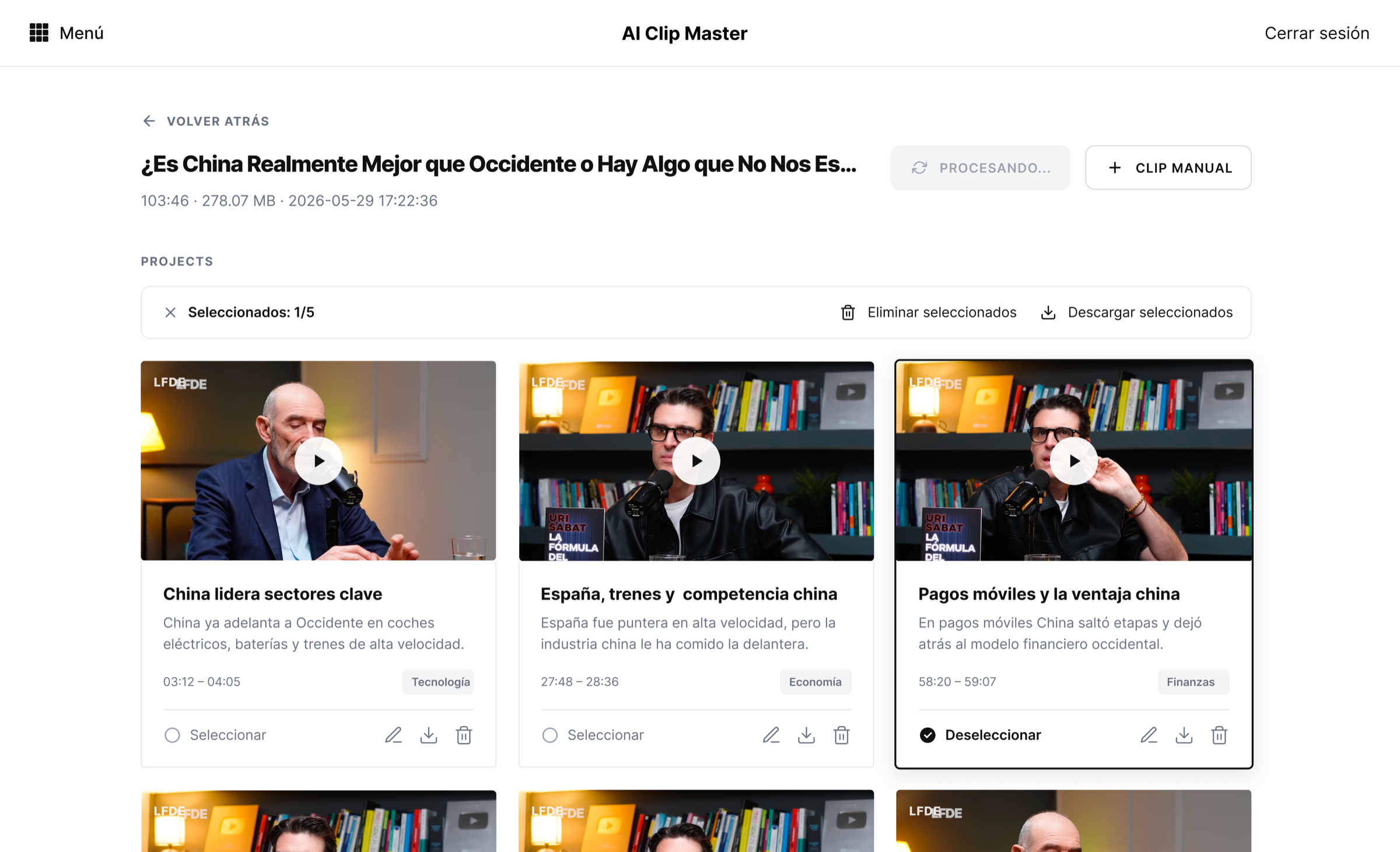
Driven by the newspaper's growth in video content, the goal was to help the video team optimize their workflow. One of the main frictions was having to manually review every master — external and internal content alike — to generate clips for the website and social media. The solution was an AI-powered internal tool that surfaces the most viral-ready clips from a given master.
The video team produces clips for the website and social media, and most of it starts the same way: a long master — a news segment, an interview, an internal podcast — that someone has to watch end to end to find the moments worth publishing. The tool takes the watching out. You upload a master and it runs locally: Whisper transcribes the audio, then Gemini reads the transcript and proposes the clips worth cutting, each with exact in and out timecodes. Hours of scrubbing turn into a short list of candidates to review.
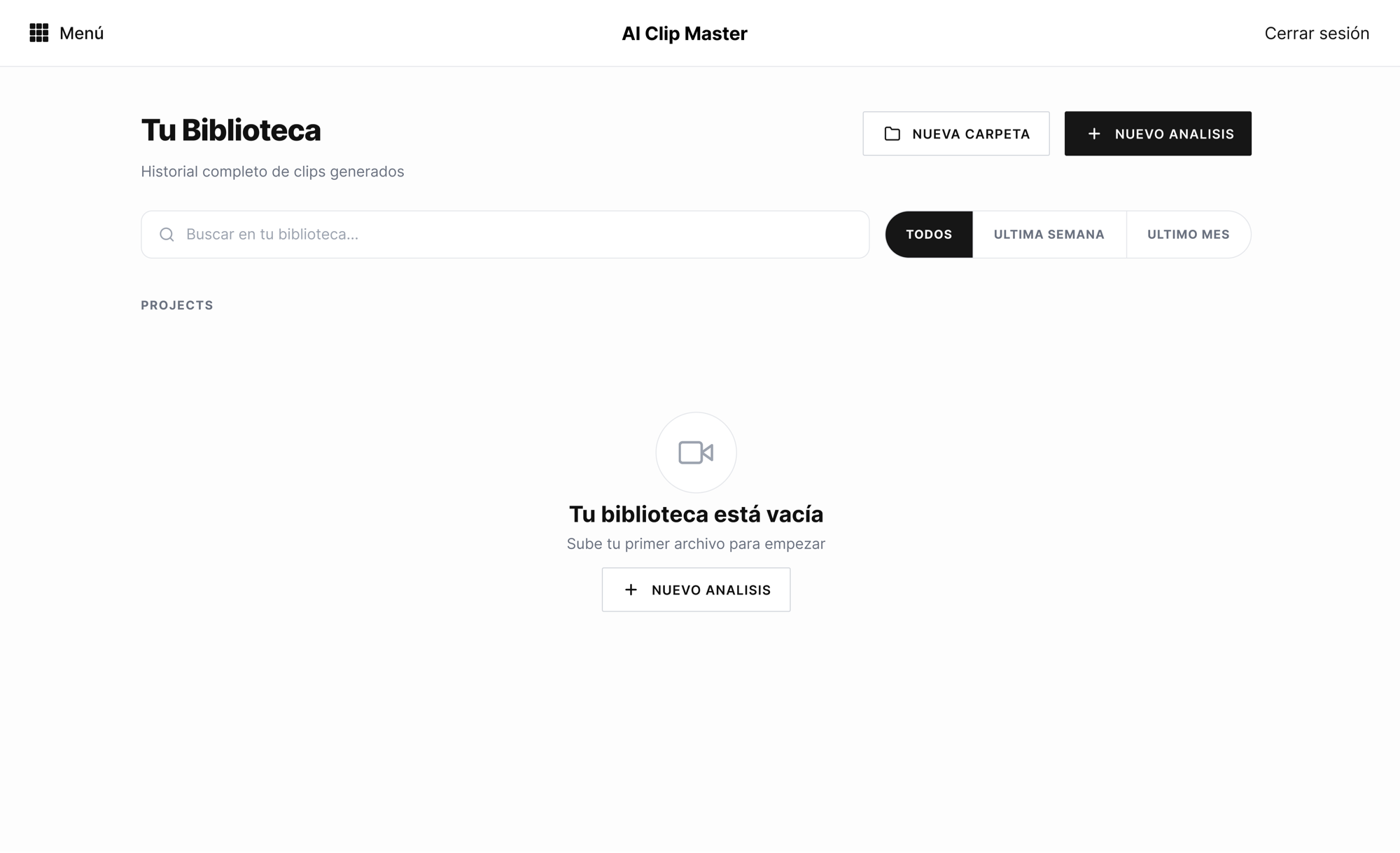
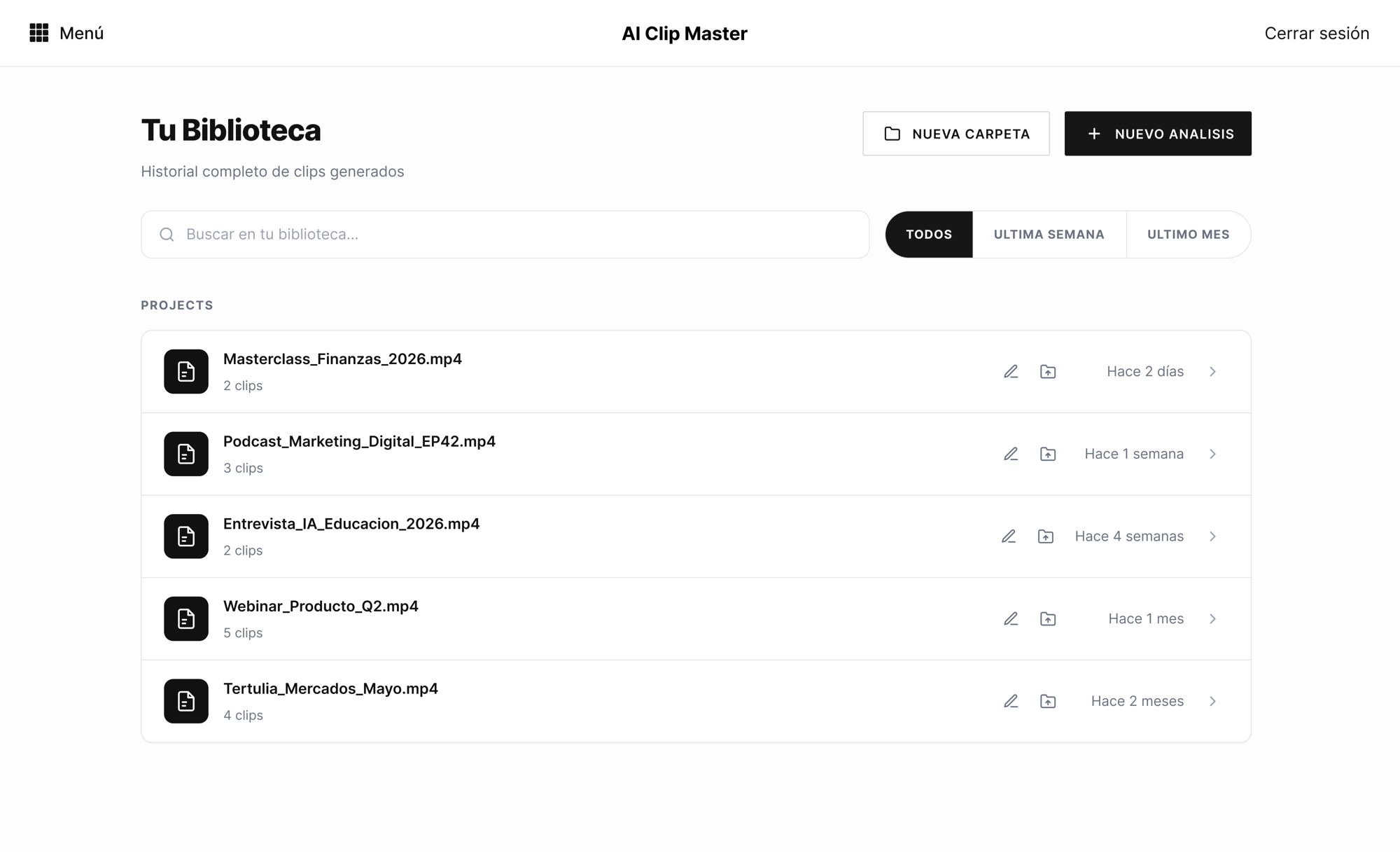
Generating clips is only half the job. The team also needed somewhere to keep the work — a file manager for the masters they upload and the clips each one produces. The library is that home base: it opens empty, with a single way in, and fills up into the team's archive as videos are processed.
As the archive grows, the library works like a proper file manager. You can create folders and move a video from one to another, rename or edit an entry, and share a folder so the work stays collaborative across the team. Every row carries the file, how many clips came out of it, and when it was processed — enough to navigate hundreds of videos without opening a single one.
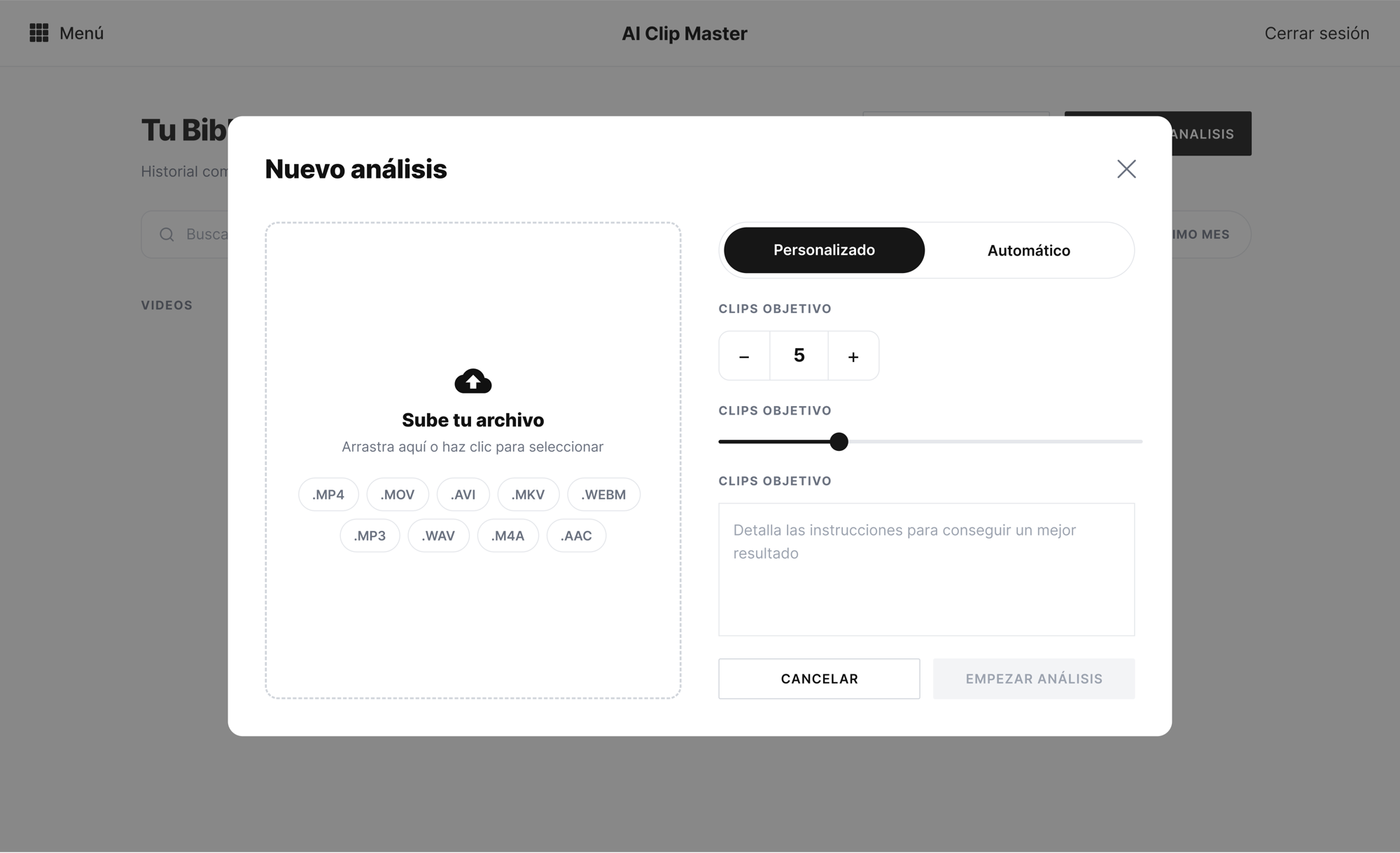
One modal brings videos in. Drop a single file or several at once, then choose how the AI should work them: automatic, where the model decides how many clips are worth cutting, or custom, where you set the parameters yourself. Custom also takes free-text annotations that feed the prompt the AI runs on — ask for a clip on a specific topic, or a nuance the settings alone can't reach, and steer exactly what it pulls out.

Generating clips runs in the background. You can keep using the app while a master is processed — and several can run at once across different folders — so the wait never takes over the screen or stops the rest of your work.
Opening a clip puts the transcript next to the video. You can search the transcript to jump straight to a moment, then set the in and out points by reading — clicking a phrase or dragging the handles on the timeline — with the clip and the full original side by side and frame-accurate timecodes underneath. From there you trim and refine the cut like you would in any video editor, except the words lead and the timeline follows.
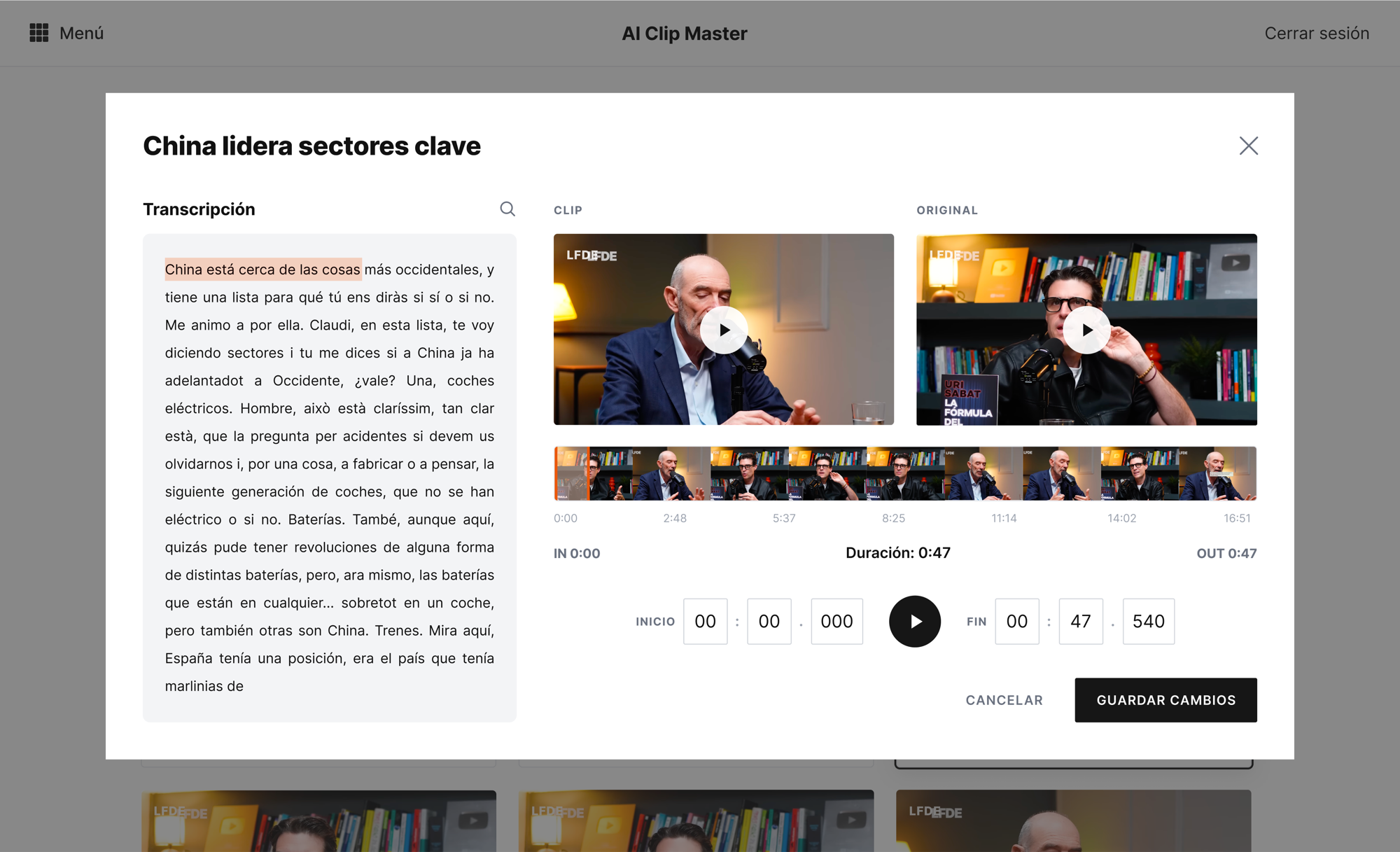
Not every clip comes from the model. A manual cut uses the same editing surface — transcript, dual preview, timeline — and adds a title and an optional hook, so a moment the AI skipped is one trim away from the same library as everything else. The human path and the AI path land in the same place, with the same controls.
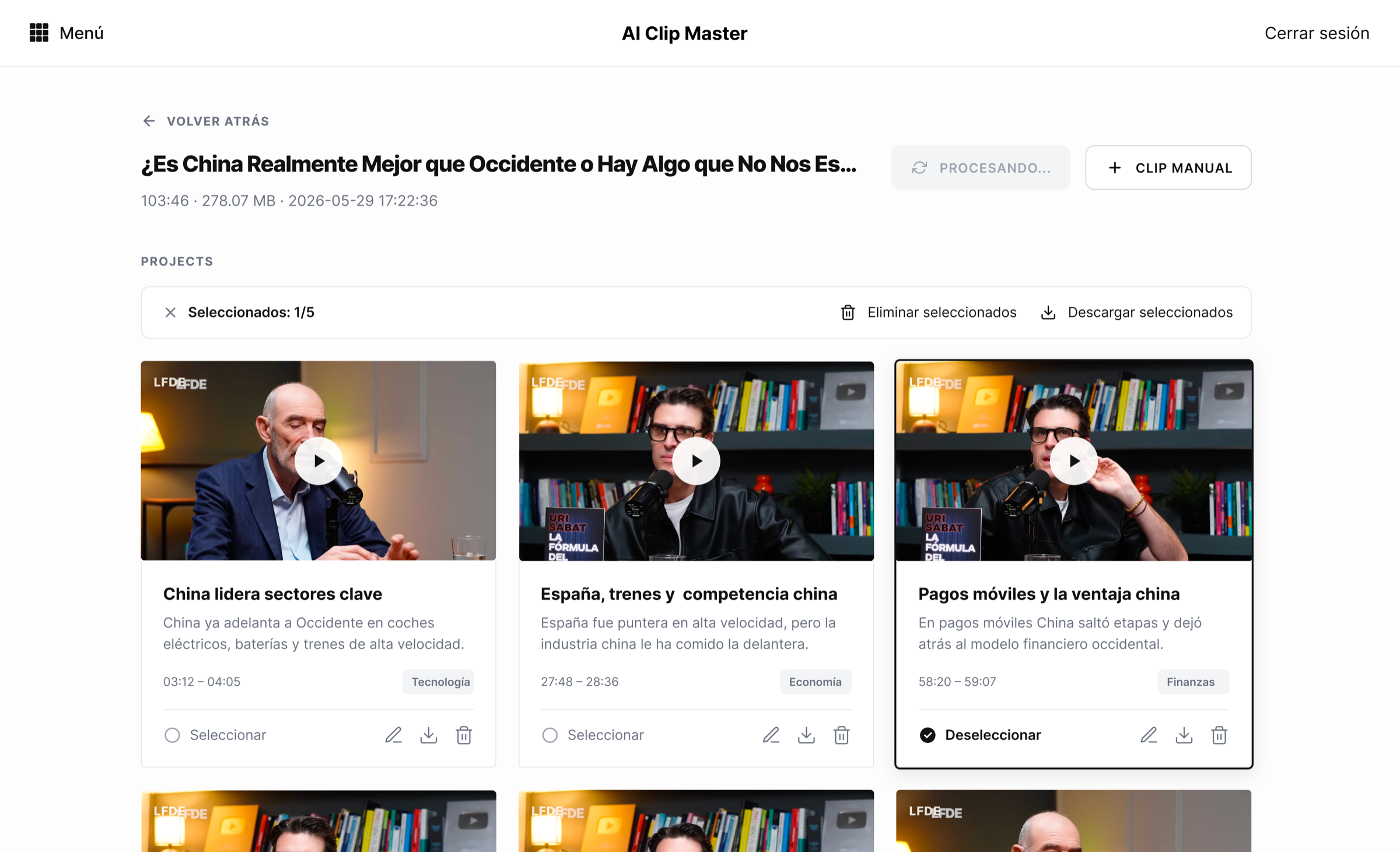
Once the clips are created, you select the ones you want and export just those, or download them all at once — ready to upload to social.
The video team uses the tool today. From here it keeps growing outward: a direct connection to the platforms where the clips get published, so exporting and uploading collapse into a single step, and deeper editing inside the tool itself — reframing and cropping shots, among others — so more of the work happens without ever leaving it.